Everything about selling online at TICA
Since August, our online sales platform has been live; exhibitors can now also sell online to TICA members. In this FAQ, you’ll read everything about setting up your sales account, adding products, order processing, and shipping. This way, you can take advantage of all the opportunities the online platform offers.
Frequently Asked Questions about Online Selling
01 Getting Started with Selling through TICA's Webshop
How Do I Sell through TICA's Webshop?
To sell through the TICA webshop, you must meet these requirements:
- Your product range aligns with TICA and our TICA members.
- You offer a minimum of 20 products.
- You use clear photos, preferably with a white background.
- Your offerings and prices are current and available for immediate delivery within the specified timeframe.
- Your company is based in the EU, with a valid EU VAT number and EU warehouse.
Do you meet these requirements? Then register via this link and choose TICA Online when asked “At which TICA location would you like to offer your products?”
Are you already an exhibitor at TICA and want to sell online too? Email us at sales@TICA.nl. After your registration, you’ll hear as soon as possible whether your application has been approved. If so, we’ll help you set up your sales account.
TICA reserves the right to accept or reject registrations.
How Do I Log into My TICA Webshop Sales Account?
Your sales account runs through the Orderchamp Cloud. You can log in via: orderchamp.com/nl/backoffice.
How Do I Set up My Sales Account?
Is your account activated? Then set it up through a few simple steps. If you already have an active catalog on Orderchamp, it’ll go even faster.
Step 1: Fill in your basic information
- Account information
- Company details
- Preferred language for your content
Step 2: Set up your shipping settings
- Create shipping groups or choose standard shipping
- Specify shipping countries
- Set minimum order value and free shipping amount
Step 3: Provide your catalog and images
- Connect your catalog via your own B2B portal or webshop software
- Use Orderchamp Cloud’s integration options
- Or import your catalog manually
Step 4: Publish your products
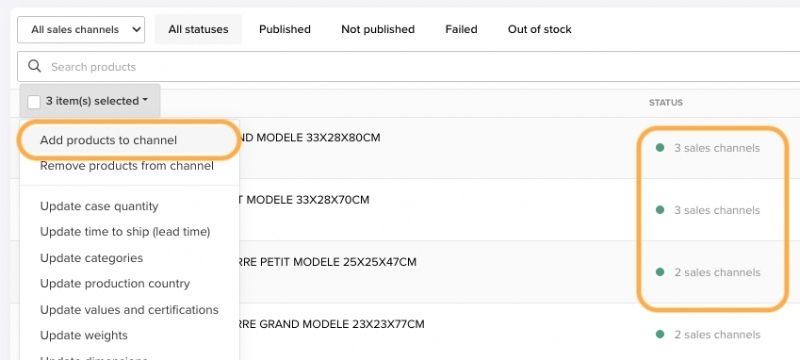
- Select which products you want to show in your Order Portal
- Use the multi-selection tool or bulk import via Excel
- Link the selected products to the TICA sales channel
02 Managing your Sales Account
How Do You Add Products?
You can add products to the TICA sales channel in three ways: manually, via a CSV file, or through integration with your own platform. Always ensure your SKUs (product numbers) are correctly filled in; this ensures smooth synchronization.
Manual adding
- Log in to the Orderchamp Cloud
- Go to “Products”
- Click on “Add new product”
- Fill in all relevant product information: title, description, price, images, SKU, and variants (if applicable)
- Save the product
Import via CSV file
- Export your current product data via: Import/Export > Export
- Edit the CSV file and add new products or update existing ones
- Import the file via Import/Export > Import
- Match the fields and follow the instructions
- Validate the import and correct any errors
Connect with another platform (e.g., Mijnwebwinkel, Shopify)
- Install the Orderchamp Cloud app on your platform (if available)
- Connect your account and set your preferences
- Choose whether to keep or overwrite existing products
- The synchronization handles title, description, price, images, SKUs, variants, and inventory
Extra tips
- Fill in all required fields to prevent errors
- Use clear, attractive product photos
Managing shipping settings for TICA sales account
Before you start selling through the TICA webshop, first set up your shipping settings. You do this in the Orderchamp Cloud via Settings > Sales Channels > TICA.
Setting up Shipping
It’s essential to set up your shipping zones and rates properly. Shipping costs can vary greatly depending on the size and weight of your products and the destination. Therefore, it’s smart to create shipping groups based on format and region. This way you maintain control over costs and deliveries.
Here’s how to create a shipping group:
- Shipping group name: This name is for internal purposes only and will not be visible to TICA members.
- Shipping costs: set a rate and choose which countries this applies to.
- Segment by country: set different shipping costs per country.
- Extra costs per product: optionally add additional shipping costs per additional product.
Default shipping group
TICA automatically creates a default shipping group with a selection of countries. You can adjust this group and the rates as you see fit.
Assigning products to shipping groups
Once you’ve set up shipping zones, assign products to the appropriate shipping group. This ensures the correct shipping rules apply per product.
03 Fulfillment and Shipping
How Can I Process an Order?
In case of damage or loss during transport, you’ll receive a notification from us. In all cases, we ask you to supplement the order and resend damaged products. You’ll receive a photo of the defect so you can file a claim with the carrier yourself.
How Am I Notified of a New Order?
Every time a TICA member places an order, we send the account owner an email. You can view the order details and confirm, modify, or cancel the order.
If you can’t immediately fulfill the quantities in the order, you can adjust the order. You can only adjust the order before confirming it. When you make changes, a refund is automatically created.
How Do I Ship a Direct Order?
Select your own carrier for your order and add the tracking number in the backoffice once it’s available.
- Choose “Self-shipping” as shipping method (only option).
- Add the packing slip.
- Enter the tracking number in the backoffice.
- Send the shipment to the TICA member.
List of Shipping Requirements per Carrier
When Does the Order Status Change?
You can modify an order through TICA as long as it hasn’t been confirmed yet. Click Edit on the order page for the relevant order line.
Note: this is only intended for exceptions. If orders are regularly adjusted, we will contact you and measures may follow.
How to modify an order:
Follow the steps below if you need to modify an order:
- Go to the order overview page and select the order.
- Click on “Edit Order”.
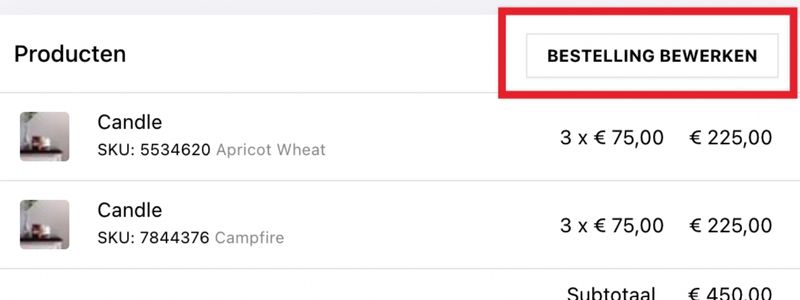
- You’ll be redirected to the “Edit Order” page.
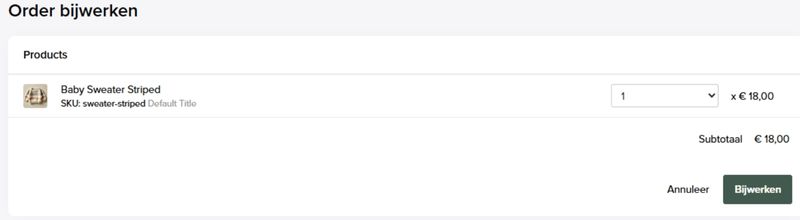
- Reduce quantities per product if necessary.
- If you remove products, you must provide a reason.
- Click Update to save the changes.
- The TICA member automatically receives a notification and any difference will be refunded.
What if a TICA Member Reports a Problem with My Products?
TICA members can report complaints via info@TICA.nl, for example about missing or damaged products. Our Customer Service team reviews the report and forwards the details to you if necessary. Together we look for an appropriate solution for the TICA member.
Note: while the issue is still unresolved, we temporarily hold the payout. If a refund needs to be made, we’ll create a separate invoice and settle it with your next payout.
What if the Order is Damaged During Shipping?
TICA members can report complaints via info@TICA.nl, for example about missing or damaged products. Our Customer Service team reviews the report and forwards the details to you if necessary. Together we look for an appropriate solution for the TICA member.
Note: while the issue is still unresolved, we temporarily hold the payout. If a refund needs to be made, we’ll create a separate invoice and settle it with your next payout.
How Do I Cancel an Order?
You can cancel an order, but only do this if there’s really no other option. Every cancellation affects the TICA member’s experience and your visibility as an exhibitor on the platform.
Cancel your order before confirming it.
1. Canceling an order
- Log in to your backoffice.
- Click on the order number.
- In the top part of the screen – click the CANCEL ORDER button.
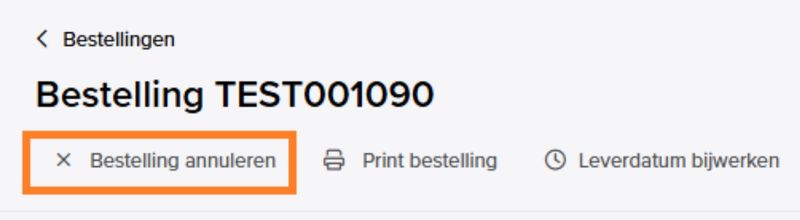
- Select the reason for cancellation.
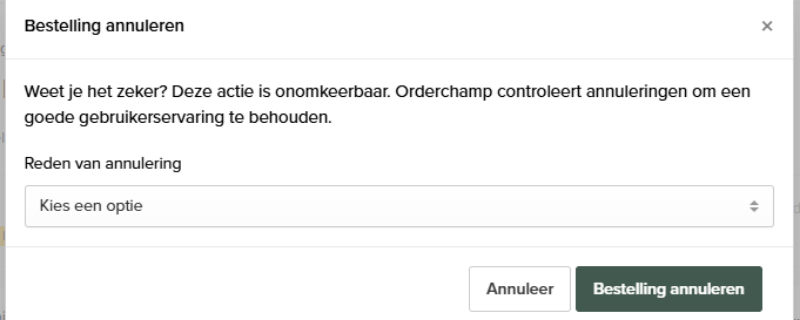
- Click on “cancel order”.
Reminder: order cancellations affect your visibility on TICA.
What if I Can Only Partially Fulfill the Order?
If you can’t fulfill some products from the order, mark the items as out of stock in your catalog and follow these steps:
- Select the order you want to edit on your order overview page.
- Click the “Edit Order” button.
- On the order editing page, you can reduce the product quantity.
- After editing the order line, click “Update”.
- You’ll be asked to write a message to the TICA member; we recommend you do this.
- The TICA member will be immediately notified of the change. A refund will be sent to the TICA member.
How Does Billing Work?
TICA is the Merchant of Record, which means TICA invoices the TICA member and receives invoices from the exhibitors. As an exhibitor, you receive an invoice as soon as you ship the order.
How is My Payout Calculated?
To calculate what we need to pay out for your order, we always look at the subtotal, shipping costs, commission, and VAT.
- Subtotal: the total product price, excluding VAT.
- Shipping: as set by you in the backend.
- Commission costs*: calculated on the subtotal (excl. VAT) and appears on the same or a separate invoice.
- VAT: depending on the order, VAT is either calculated or reverse-charged.
How Does TICA Handle VAT?
TICA Online acts as Merchant of Record and is based in the Netherlands, with VAT registrations in Germany and Belgium. With every order, TICA Online is part of the billing process:
- TICA creates a self-billing invoice on behalf of you, the exhibitor.
- Then TICA invoices the TICA member.
- So you invoice TICA Online, not directly to the TICA member.
Which VAT registration of TICA is used depends on the location of you as the exhibitor and that of the TICA member. Based on this, TICA processes the order, provides the correct invoice, and handles the VAT correctly.